Publishing a Vulnerability Disclosure Program
A Vulnerability Disclosure Program (VDP) tells security researchers how to report issues to you and what they can expect in return. Publishing one on your Trust Center signals that you take security seriously, reduces back-and-forth when reports come in, and gives researchers a clear, safe-harbor process to follow.
Oneleet's VDP is built into the Trust Center. You write four markdown sections on the config page, save them as a draft, and publish when you're ready — at which point a new tab appears on your public trust page.
Step 1 — Open the VDP config page
Section titled “Step 1 — Open the VDP config page”Open Trust Center → Configure → Vulnerability Disclosure. This one page is where everything happens: the Publish toggle, the four markdown editors, and a Save button at the bottom.
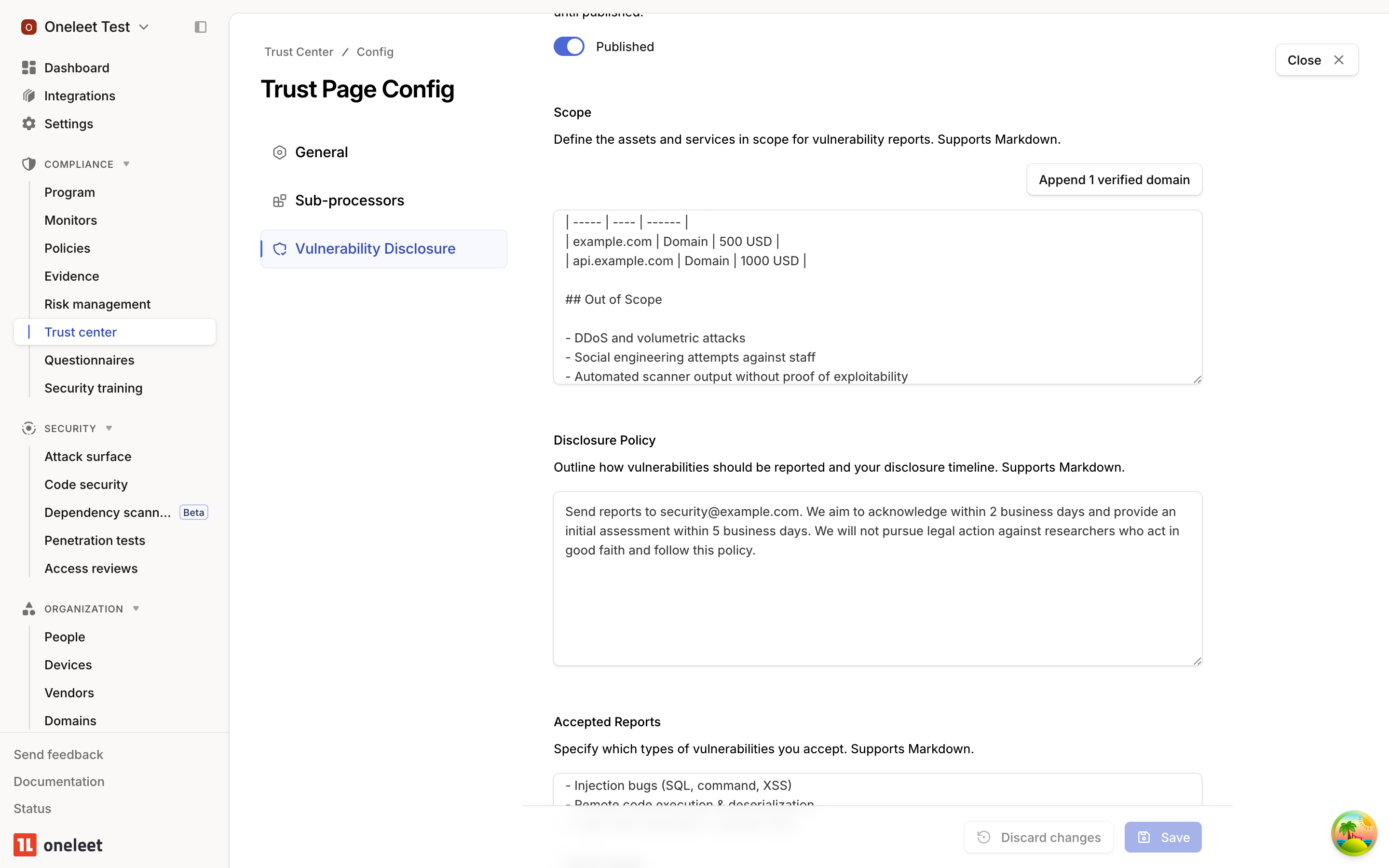
Content you type is kept as a local draft until you hit Save. The Publish toggle is independent of your draft — you can edit freely without anything showing up publicly, and publish only when the content is ready.
Step 2 — Fill in your scope and policy
Section titled “Step 2 — Fill in your scope and policy”Write into the four markdown editors — Scope, Disclosure Policy, Accepted Reports, and Hall of Fame — then click Save at the bottom of the page. Discard changes reverts the draft to whatever was last saved on the server.
Scope — one-click domain import
Section titled “Scope — one-click domain import”Scope is usually the hardest section to keep accurate because your domain list changes over time. The Append verified domain(s) button above the Scope editor pulls every verified domain from your account and inserts them into the draft as a markdown table with columns for Asset, Type, and Bounty. The bounty column is left as TBD so you can fill in the amount (or — if you don't offer one) per asset.
If your Scope field already has content, the table is appended after a horizontal rule so your intro and exclusions stay intact. The append happens in your draft, so you can review — and click Discard changes to undo it — before saving.
Heads-up: The button only picks up domains that are verified in Attack Surface Management. Unverified domains are skipped so you don't advertise scope you can't prove you own. If the button says "No verified domains available", head to Attack Surface → Domains and finish verification first.
Disclosure Policy
Section titled “Disclosure Policy”Describe how researchers should contact you and what response times they can expect. A single line pointing to your security email plus a brief safe-harbor statement is usually enough. Example:
Send reports to *security@yourcompany.com*. We aim to acknowledgewithin 2 business days. We will not pursue legal action againstresearchers who act in good faith and follow this policy.Accepted Reports
Section titled “Accepted Reports”List the classes of vulnerability you want to hear about, and the ones you don't. Being explicit about out-of-scope categories (DDoS, social engineering, automated scanner output, etc.) saves everyone time.
Hall of Fame
Section titled “Hall of Fame”Optional. Credit the researchers who've helped you. A simple list of handles goes a long way.
Step 3 — Preview in the admin Trust Center
Section titled “Step 3 — Preview in the admin Trust Center”Back in Trust Center, the Vulnerability Disclosure tab shows a read-only rendered preview of your saved content, exactly as researchers will see it. Use this to proof-read before publishing.
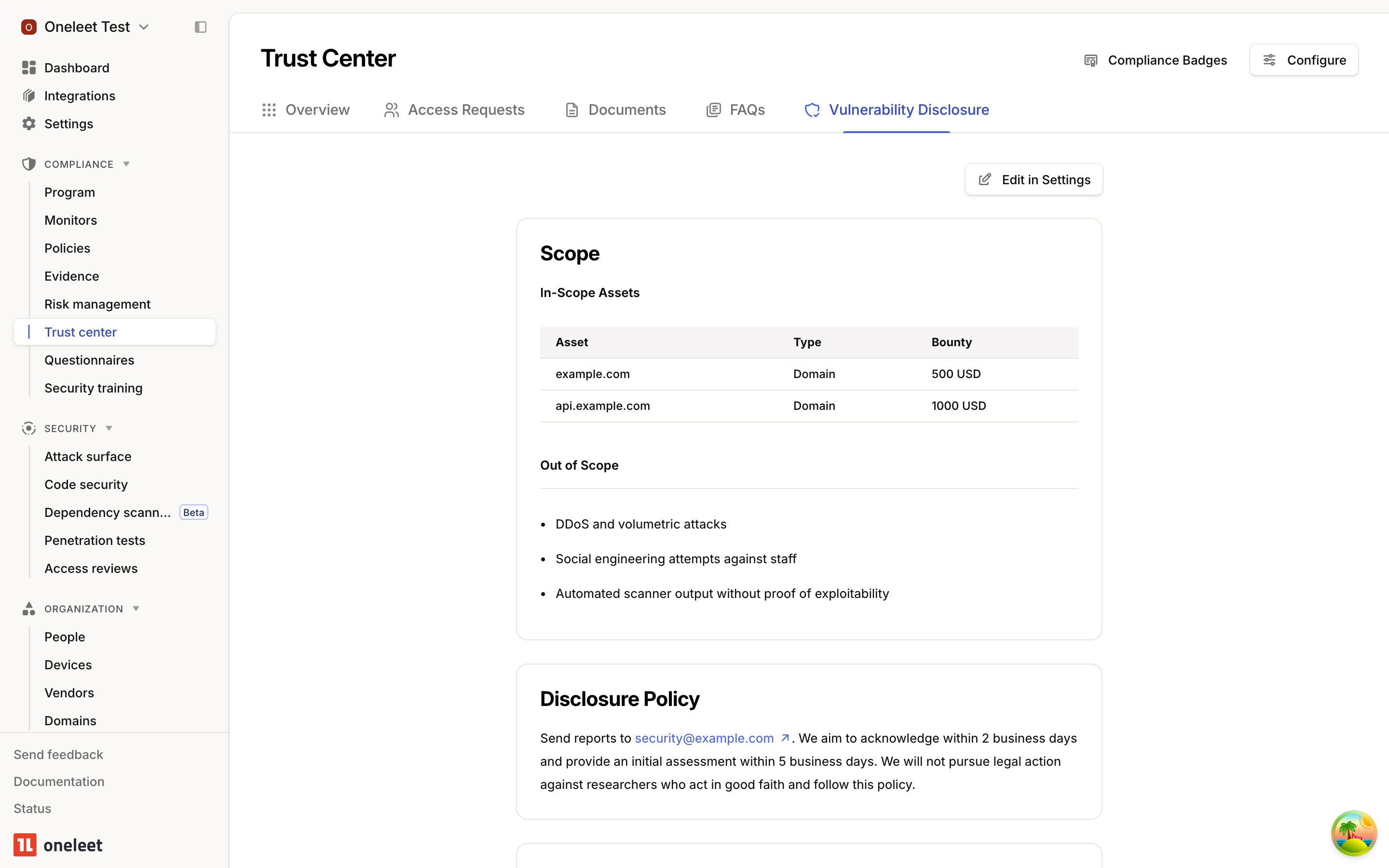
If anything looks off, click Edit in Settings in the top-right to jump straight back to the config page.
Step 4 — Publish
Section titled “Step 4 — Publish”When you're happy with the preview, return to Trust Center → Configure → Vulnerability Disclosure and flip the Publish toggle to Published. The Vulnerability Disclosure Program tab appears on your public trust page immediately.
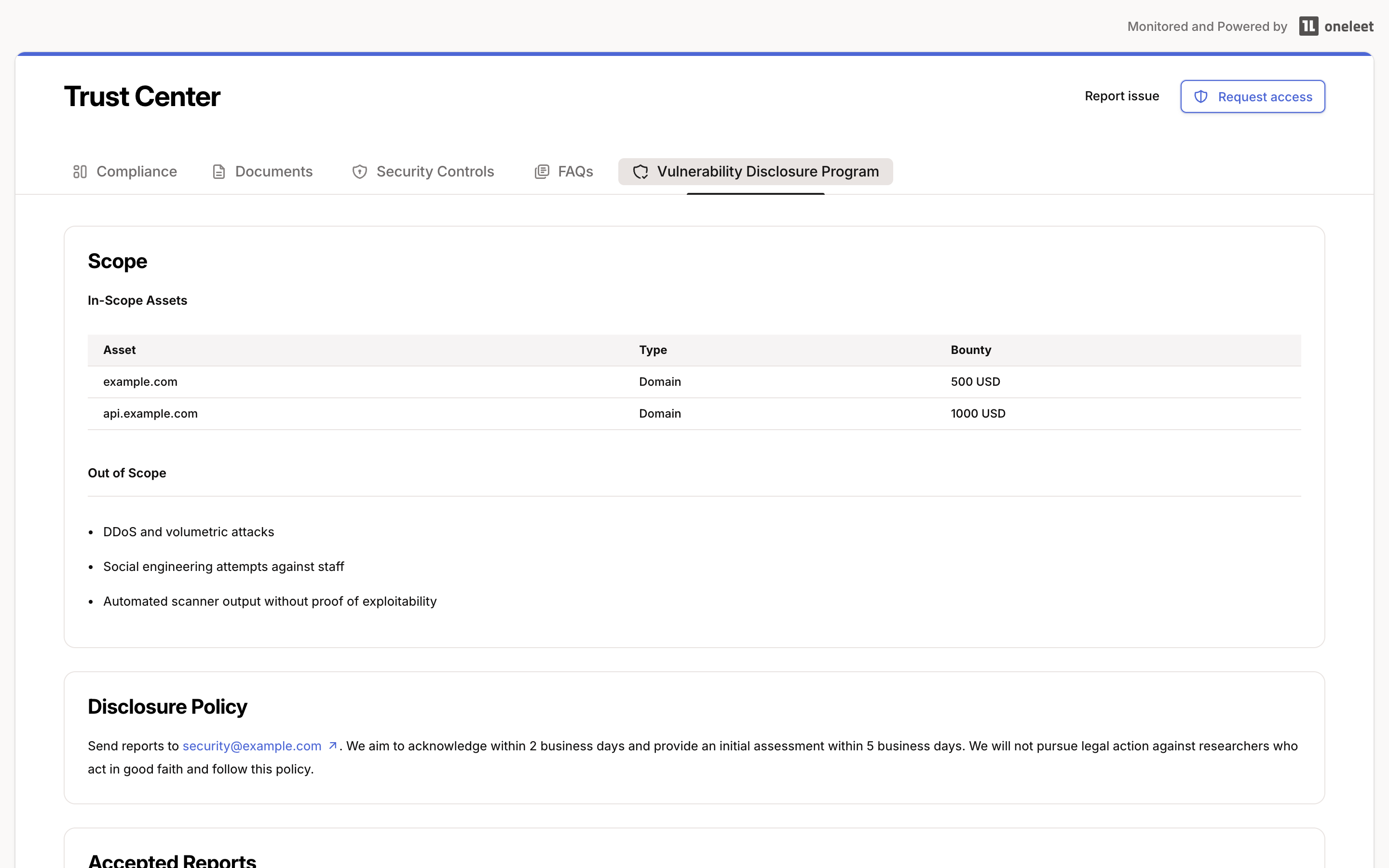
All four sections render as markdown, so tables, links, bullet lists, and inline code all work. Toggle Publish back off at any time to remove the tab from your public page; your saved content remains in place.
Step 5 — Receiving and reviewing reports
Section titled “Step 5 — Receiving and reviewing reports”Publishing a VDP isn't just informational — it gives researchers a way to act. The Vulnerability Disclosure Program tab ends with a Report a vulnerability call to action. A researcher who has read your scope and disclosure policy can submit a finding right there, without leaving the page.
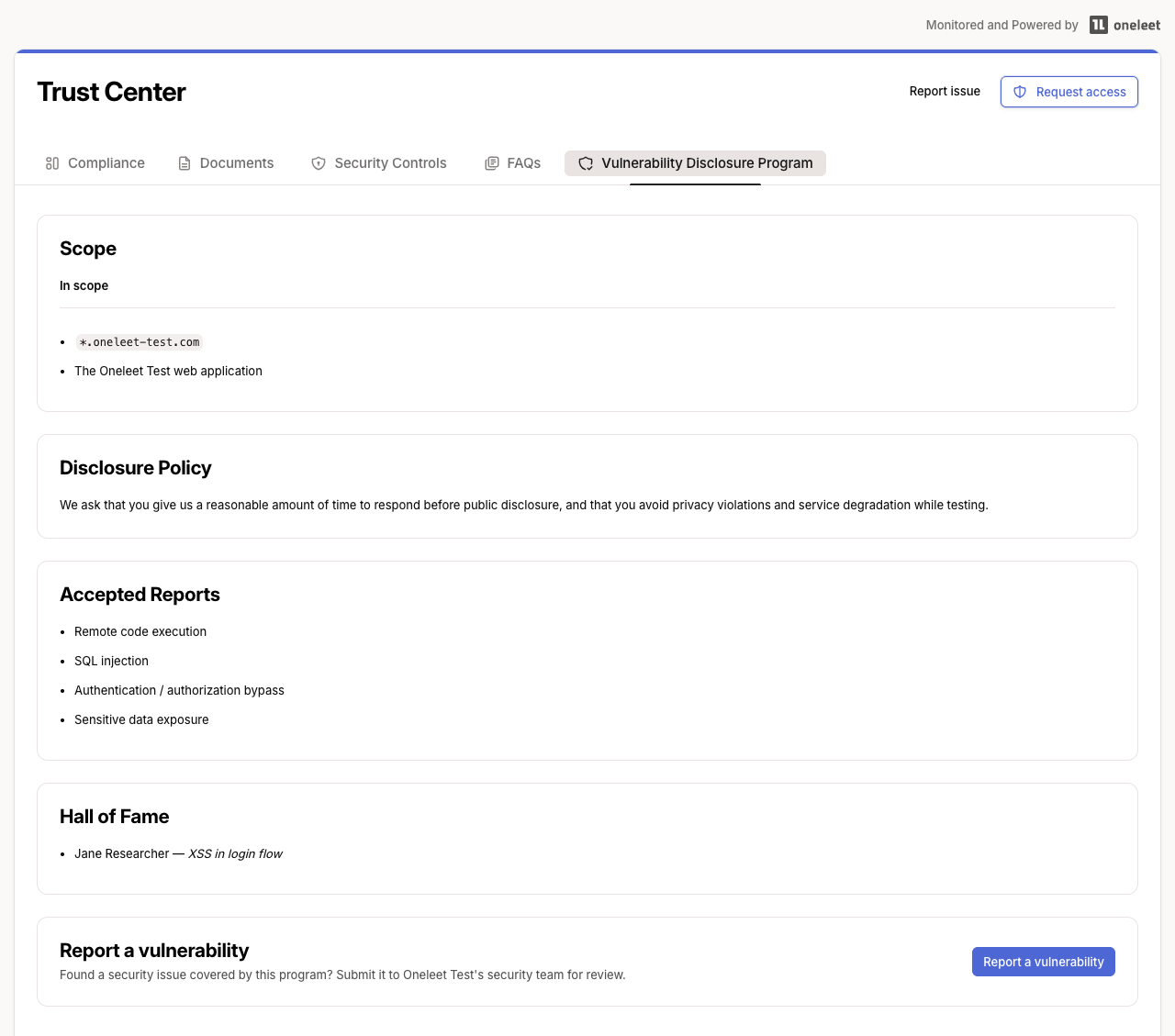
Clicking it opens a short form for the reporter's name, email, and a description of the issue (with guidance on what details to include — affected asset, reproduction steps, impact, and evidence). When a VDP is published, the reporter must also tick a checkbox confirming they've reviewed your program scope and that their report falls within it, before they can submit.
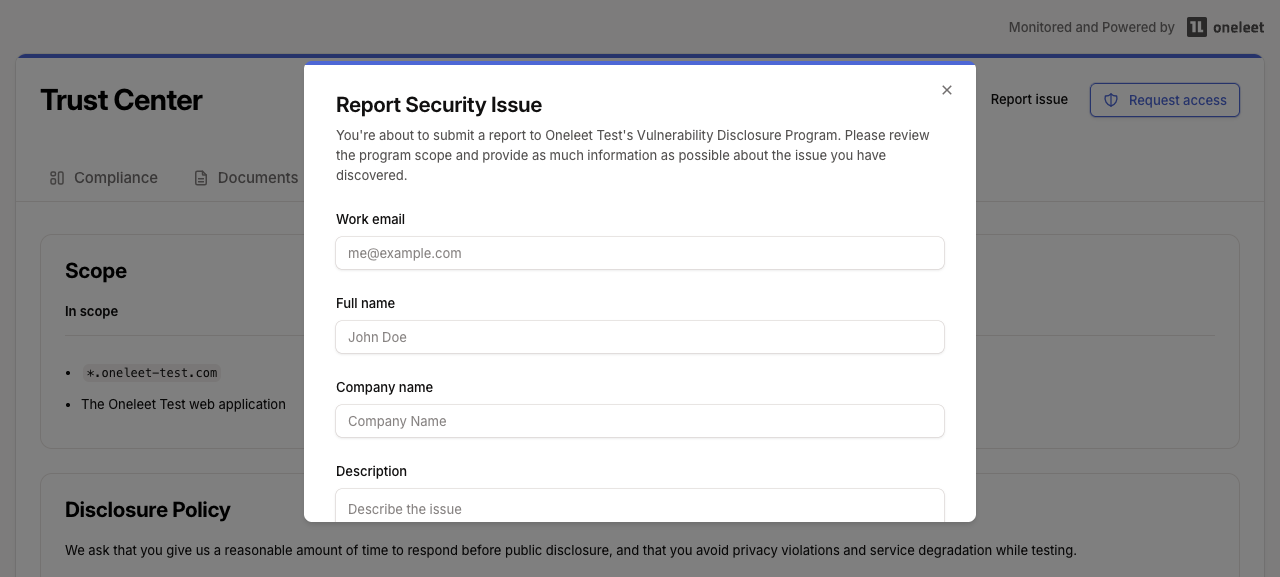
When a report is submitted:
- It's recorded as a security issue report against your tenant and shows up in the admin Trust Center for your team to triage and resolve.
- Your tenant admins are notified by email so a finding never sits unseen.
Every submission must pass an hCaptcha challenge before it's accepted, so automated bots can't flood your security inbox. No configuration is required — the captcha is on automatically for every published trust page.
- Keep it short. Researchers scan — they don't read. A short scope, a clear contact, and a list of what you accept is better than a wall of legal text.
- State your bounty policy upfront. Even "no monetary bounty at this time; we credit researchers in our Hall of Fame" is better than silence.
- Link to it from your main site. A
/securityor/.well-known/security.txtpointer to your trust page's VDP tab is the single highest-ROI thing you can do after publishing. - Re-run the domain import after every ASM verification. Researchers rely on scope being current; stale scope is the #1 source of friction.